In today’s remote work, streaming, and video calling era, many people want better video quality than what built-in laptop webcams offer. Fortunately, your smartphone—whether Android or iPhone—has an excellent camera that can serve as a high-quality webcam for your PC. This setup often delivers sharper images, better low-light performance, and features like wide-angle or portrait modes.
As of 2026, there are several reliable methods, ranging from built-in OS features to free or low-cost third-party apps. Below are the most popular and effective ways to turn your phone into a PC webcam.
1. For Android Phones + Windows PC (Easiest Built-in Option)
Microsoft’s Link to Windows (via the Phone Link app) now supports using your linked Android phone’s camera as a webcam in Windows 11 (and later). This is wireless and requires no extra apps beyond what’s pre-installed on recent devices.
Requirements:
- Windows 11 or later PC
- Android 10 or later phone
- Link to Windows app (pre-installed on many Samsung/Google phones or downloadable)
Steps:
- On your PC, open Settings > Bluetooth & devices > Mobile devices (or search for “Link to Windows”).
- Link your phone by scanning the QR code or signing in with the same Microsoft account.
- On your phone, open the Link to Windows app (or Phone Link companion) and ensure camera permissions are granted in phone Settings.
- Enable the mobile device camera feature in PC Settings if prompted.
- In any video app (Zoom, Teams, OBS, etc.), select your phone (it appears as “Mobile device” or similar) from the camera dropdown.
This method is seamless for wireless use and supports front/rear cameras. For more stability, some Android phones (like certain Pixel or Motorola models) offer a direct USB webcam mode: connect via USB, pull down the notification shade, tap the USB option, and choose “Webcam.”
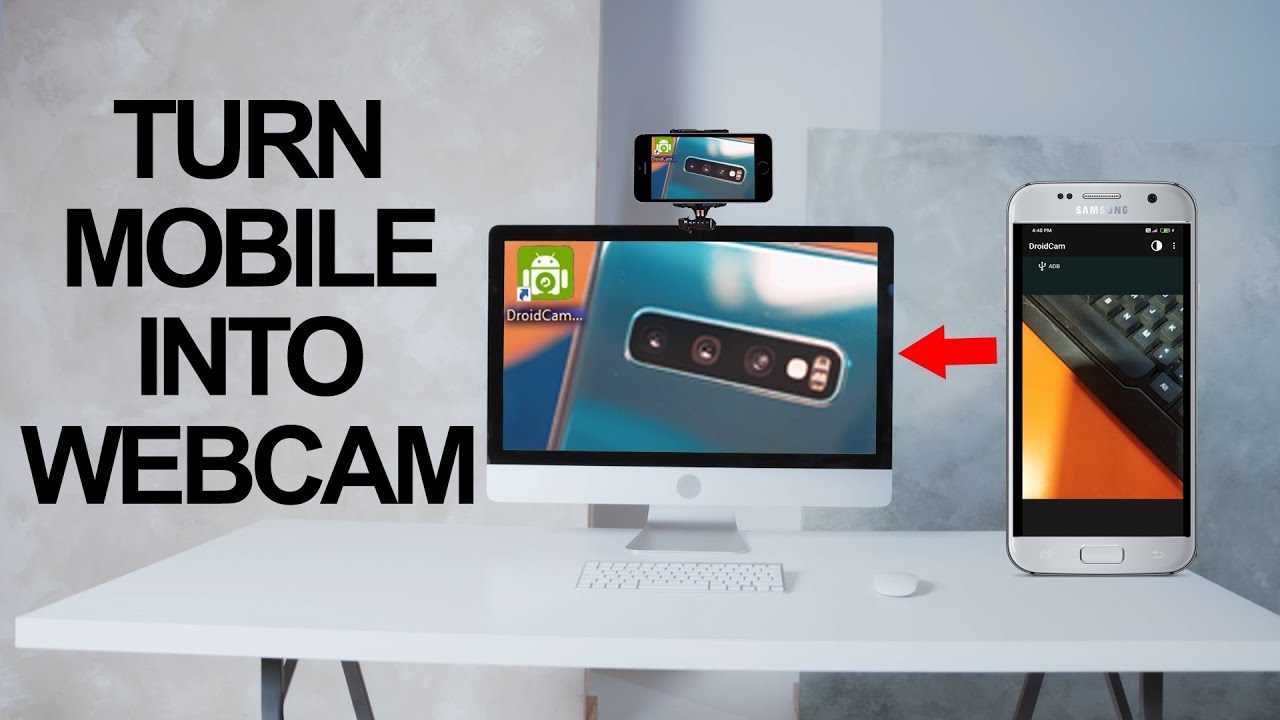
2. Cross-Platform Method: DroidCam (Best Free All-Around Option for Windows/Linux)
DroidCam remains one of the most popular free tools in 2026. It works with both Android and iOS phones, connects via Wi-Fi or USB, and integrates well with Zoom, Teams, OBS, and more.
Requirements:
- Phone: Android 5.0+ or iOS 9+
- PC: Windows or Linux (macOS support limited)
Steps:
- Download the DroidCam app on your phone:
- Android: Google Play Store
- iOS: App Store
- Download and install the DroidCam client on your PC from the official site (droidcam.app).
- Ensure your phone and PC are on the same Wi-Fi network.
- Open the DroidCam app on your phone—it displays an IP address (e.g., 192.168.x.x) and port.
- Launch the DroidCam client on your PC, enter the IP and port, check “Audio” if needed, and click Start.
- In your video app (e.g., Zoom), select “DroidCam Source” as the camera.
- (Optional) For even better integration with OBS, install the DroidCam OBS plugin.
The free version offers standard definition; upgrade to Pro for HD, no ads, and extra controls like zoom.
3. For iPhone + Mac (Native & Seamless: Continuity Camera)
If you have an iPhone and a Mac, Apple’s Continuity Camera is the simplest, highest-quality option—no extra apps needed.
Requirements:
- iPhone on iOS 16+
- Mac on macOS Ventura (13)+
- Both devices signed into the same Apple ID, with Wi-Fi and Bluetooth on
Steps:
- On your iPhone, go to Settings > General > AirPlay & Handoff and enable Continuity Camera.
- Position your iPhone near your Mac (it can mount via stand or MagSafe).
- Open a camera-using app on Mac (FaceTime, Zoom, Photo Booth, etc.).
- In the app’s video settings or menu bar, select your iPhone as the camera source.
- Advanced features: Center Stage, Desk View, Portrait mode, and Studio Light automatically activate on supported iPhones.
This delivers excellent quality with low latency.
4. For iPhone + Windows PC (or Cross-Platform Needs)
For Windows users with an iPhone, third-party apps are required. Popular options include:
- Reincubate Camo — High-quality (up to 4K on newer iPhones), supports Wi-Fi/USB, works on both Windows and Mac. Free version up to 720p; paid unlocks higher res and extras.
- EpocCam (by Elgato) — Solid HD support, but free version has ads and limits; paid removes them.
- Iriun Webcam — Free tier available, easy Wi-Fi setup, good for basic use.
General setup for these apps:
- Install the app on your iPhone (App Store) and the companion software on your PC.
- Connect via Wi-Fi (same network) or USB.
- Launch both, grant permissions, and select the app as your camera in video software.
Tips for Best Results
- Connection preference: USB is more stable and lower latency than Wi-Fi (especially for streaming).
- Mounting: Use a tripod, phone stand, or clip to position your phone at eye level.
- Lighting & framing: Good lighting makes a huge difference—face a window or use a ring light.
- Battery & heat: Plug in your phone during long calls; high-res streaming drains battery fast.
- Select in apps: Always restart Zoom/Teams/OBS after setup if the phone camera doesn’t appear immediately.
- Alternatives: If you need advanced features (e.g., for professional streaming), consider Camo or DroidCam Pro.
Using your phone as a webcam is often better than budget webcams and costs nothing extra if you use free options like DroidCam or Windows’ built-in Android support. Give one of these methods a try—your video calls will look noticeably sharper!