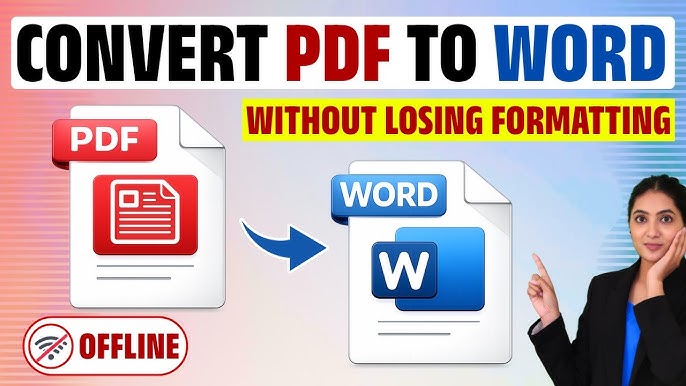
Converting a PDF to Word without losing formatting remains a common challenge in 2026, especially with complex documents containing tables, columns, images, headers/footers, or scanned content. PDFs lock layout for consistency, while Word uses a flexible, editable structure — so perfect 1:1 conversion isn’t always guaranteed. However, modern tools with advanced layout detection, AI assistance, and OCR (Optical Character Recognition) deliver excellent results for most users.
Here’s a complete, up-to-date guide to the best methods for converting PDF to editable DOCX while preserving fonts, layouts, tables, images, and overall formatting as closely as possible.
Why Formatting Gets Lost (And How to Minimize It)
- PDFs prioritize visual appearance; Word prioritizes editability.
- Issues arise with multi-column layouts, precise positioning, embedded fonts, or scanned (image-based) PDFs.
- Pro tips upfront:
- Use DOCX (not older .DOC) for better modern compatibility.
- Prefer native text PDFs over scanned ones (enable OCR when needed).
- Always review and tweak the converted file in Word.
- For critical documents, start with the original source file if available.
1. Built-in Free Method: Microsoft Word (Quick & Often Effective)
Microsoft Word (2013 and later, including Microsoft 365 in 2026) has a built-in PDF importer.
Steps:
- Open Microsoft Word.
- Go to File > Open → Browse and select your PDF file.
- Word will display a prompt: “Word will now convert your PDF to an editable Word document.” Click OK.
- Wait for the conversion (may take a few moments for large files).
- Review the document, then Save As → choose Word Document (*.docx).
Pros: Completely free, no upload needed, decent layout retention for simple to moderately complex docs. Cons: Can struggle with intricate tables, columns, or heavy graphics — some manual cleanup may be required.
Alternative quick method: Drag and drop the PDF directly onto the Word icon or into an open Word window.
2. Adobe Acrobat (Best Accuracy – Industry Standard)
As the creator of the PDF format, Adobe delivers the highest fidelity conversion in 2026.
Steps (Desktop Acrobat Pro):
- Open your PDF in Adobe Acrobat Pro.
- Go to File > Export To > Microsoft Word > Word Document (DOCX).
- Choose settings (e.g., retain flow or layout) and click Export.
- Save the resulting DOCX file.
Online version (free limited use):
- Visit Adobe Acrobat online PDF to Word converter.
- Upload the PDF → Convert → Download the DOCX.
Pros: Excellent preservation of fonts, tables, images, and layout; strong OCR for scanned PDFs. Cons: Full Pro version requires a subscription (best for professionals).
3. Popular Online Converters (Fast & Convenient)
These web-based tools work well for most documents and often include smart formatting engines.
Recommended options in 2026:
- Smallpdf — Clean interface, good formatting retention, no signup for basic use.
- iLovePDF — Fast batch conversion, OCR option, preserves layout accurately.
- PDFgear — Free, no ads/watermarks, strong OCR and formatting preservation.
- Nitro PDF Online or Foxit — Reliable for complex layouts.
General Steps:
- Go to the converter website.
- Upload your PDF (drag & drop supported).
- Select Convert to Word (DOCX) and enable OCR if the PDF is scanned.
- Download the converted file.
- Open in Word and check formatting.
Security note: For sensitive documents, prefer desktop tools or trusted services with clear privacy policies. Avoid unknown free sites.
4. Dedicated Desktop PDF Editors (Best for Complex or Frequent Use)
These offer superior control and accuracy:
- Wondershare PDFelement — User-friendly with excellent layout retention.
- Nitro Pro — Strong at maintaining original structure and branding elements.
- Foxit PDF Editor — Lightweight yet powerful.
- PDNob PDF Editor or similar AI-assisted tools — Affordable and accurate for individuals.
Most follow a similar flow: Open PDF → Convert/Export → To Word.
5. Handling Scanned or Image-Based PDFs (OCR Required)
For non-selectable text PDFs:
- Use tools with built-in OCR (Adobe Acrobat, PDFgear, iLovePDF, Able2Extract, etc.).
- OCR converts images of text into editable, searchable content while trying to keep layout.
Quick Comparison Table (2026)
| Method/Tool | Best For | Formatting Accuracy | OCR Support | Cost | Speed | Privacy/Security |
|---|---|---|---|---|---|---|
| Microsoft Word (built-in) | Simple documents, quick jobs | Good | Limited | Free | Fast | Excellent (local) |
| Adobe Acrobat Pro | Professional, complex docs | Excellent | Best | Subscription | Fast | High |
| Smallpdf / iLovePDF | Everyday online use | Very Good | Yes | Free / Pro | Very Fast | Good (check policy) |
| PDFgear | Free & accurate | Very Good | Yes | Free | Fast | High |
| Nitro Pro / Foxit | Business layouts | Excellent | Yes | Paid | Fast | High |
Post-Conversion Tips to Fix Remaining Issues
- Open the DOCX in Microsoft Word and use Layout or Design tools to adjust margins, spacing, or tables.
- Reapply fonts if substitutions occur (embed fonts in the original PDF when possible).
- Fix tables manually using Word’s table tools.
- For images/graphics: They usually transfer well, but reposition if shifted.
- Test with a small section first for important files.
Final Advice for Best Results in 2026
- Simple PDFs — Start with Microsoft Word’s built-in converter.
- Complex or professional documents — Use Adobe Acrobat or a dedicated editor like Nitro/Foxit.
- Scanned PDFs — Always choose a tool with high-quality OCR.
- Batch or frequent conversions — Invest in desktop software for unlimited, offline use.
No single method guarantees 100% perfection every time due to fundamental differences between PDF and Word formats, but the tools above minimize manual fixes significantly. Always double-check the output, especially headings, tables, and page breaks.
If your PDF came from a Word document originally, editing the source file (if available) will always yield the cleanest results. Start experimenting with the free options today to find what works best for your specific documents!