Background apps in Windows 11 continue running even when you’re not using them. They consume CPU, RAM, battery life (on laptops), and internet bandwidth, which can slow down your PC, increase heating, and reduce overall performance.
Disabling unnecessary background apps is one of the quickest and easiest ways to optimize your system, improve speed, and extend battery life — especially if you notice high resource usage in Task Manager.
Here’s a complete step-by-step guide to disable background apps in Windows 11 effectively in 2026.
Why You Should Disable Background Apps
- Saves RAM and CPU resources
- Improves system responsiveness and gaming performance
- Extends battery life on laptops and tablets
- Reduces unnecessary data usage
- Lowers background noise and heat generation
Windows 11 gives you excellent control over which apps can run in the background. You can disable them globally or on a per-app basis.
Method 1: Disable Background Apps from Settings (Easiest Way)
This is the recommended method for most users.
- Open Settings (press Windows key + I).
- Click on Apps from the left sidebar.
- Select Installed apps.
- Scroll through the list and find the app you want to restrict.
- Click the three-dot menu (⋯) next to the app.
- Select Advanced options.
- Under Background apps permissions, change the dropdown from Always or Power optimized to Never.
Repeat this for every app you don’t want running in the background (e.g., Spotify, OneDrive, Discord, Microsoft Teams, Instagram, etc.).
Tip: Focus on social media apps, cloud sync tools, and messaging apps first — they are usually the biggest resource hogs.
Method 2: Disable All Background Apps at Once (Global Setting)
- Open Settings → Privacy & security.
- Scroll down and click Background apps.
- Toggle off the switch for Let apps run in the background.
This global toggle prevents most Microsoft Store apps from running in the background. However, some desktop (Win32) apps and system processes may still run unless you disable them individually using Method 1.
Note: In newer Windows 11 builds (2025–2026), this setting has been slightly reorganized under Apps > Advanced app settings or directly under Privacy & security.
Method 3: Disable Background Apps Using Task Manager
For more advanced control:
- Press Ctrl + Shift + Esc to open Task Manager.
- Go to the Startup apps tab (this controls apps that start with Windows).
- Right-click on any unnecessary app and select Disable.
While this doesn’t stop current background activity, it prevents them from launching automatically on boot — a major step toward reducing background load.
For currently running background processes:
- Switch to the Processes tab.
- Right-click on high-resource background apps and select End task (temporary solution).
Method 4: Using PowerShell (For Advanced Users)
You can use a simple PowerShell command to manage background app permissions more efficiently.
- Search for PowerShell in the Start menu, right-click it, and select Run as administrator.
- Copy and paste the following command and press Enter:
PowerShell
Get-AppxPackage | Where-Object {$_.NonRemovable -eq $false} | ForEach-Object {Set-AppxPackage -Package $_.PackageFullName -AllUsers -BackgroundAccessType None}This command disables background access for all non-essential Microsoft Store apps.
Bonus Tips for Better Performance in 2026
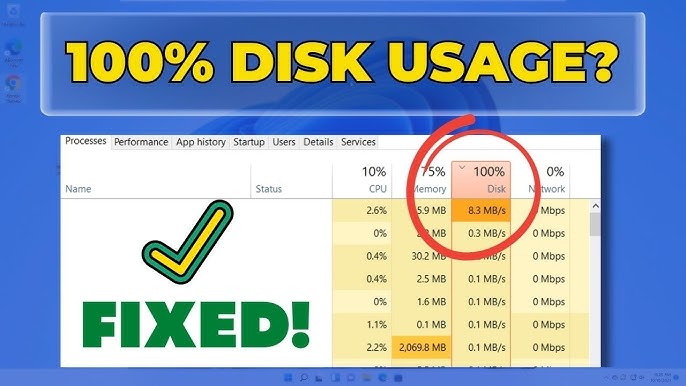
- Check Background Activity in Task Manager: Go to the Performance tab or Processes tab regularly to spot apps using high CPU, Memory, or Network in the background.
- Disable OneDrive Sync if not needed: Right-click the OneDrive cloud icon in the system tray → Settings → Account → Unlink this PC (or pause syncing).
- Use Focus Assist: Settings → System → Focus → Turn on to temporarily silence background notifications and activity.
- Update Windows 11: Newer versions have improved background management and power efficiency features.
- Re-enable when needed: Some apps (like email or security tools) perform better when allowed to run in the background. You can always change permissions back.
Quick Summary Table
| Method | Best For | Difficulty | Affects All Apps? | Recommended |
|---|---|---|---|---|
| Settings (Per App) | Precise control | Easy | No | Best Choice |
| Privacy & Security (Global) | Quick disable | Very Easy | Yes (mostly) | Good |
| Task Manager (Startup) | Boot-time apps | Easy | No | Useful |
| PowerShell Command | Bulk disable | Advanced | Yes | Power Users |
Final Thoughts
Disabling background apps in Windows 11 is a simple yet highly effective optimization step. Most users can free up 10–30% of RAM and noticeably improve system snappiness by restricting just 5–10 unnecessary apps.
Start with the Settings → Apps → Installed apps method — it’s the most user-friendly and gives you full control without breaking important features.
After making changes, restart your PC and check Task Manager again. You should see lower resource usage and better overall performance.
If your PC still feels slow, combine this with other optimizations like cleaning temporary files, updating drivers, or using lightweight alternatives to heavy background apps.
Would you like me to add sections for Windows 11 specific new features, screenshots descriptions, or combine this with previous performance articles?