Is your computer feeling sluggish in 2026? Programs take forever to launch, multitasking feels choppy, and boot times stretch into minutes. The good news: most performance slowdowns come from accumulated digital clutter, unnecessary background processes, outdated software, and (in many cases) physical dust buildup.
Cleaning your PC—both software and hardware—can deliver dramatic speed improvements without spending a dime on new parts. Below is a practical, step-by-step guide that combines official Microsoft recommendations, proven free tools, and hardware best practices that still apply in 2026.
Follow these steps in order for the biggest impact.
1. Clean the Inside: Remove Physical Dust and Improve Cooling
Dust is the silent performance killer. It blocks airflow → raises temperatures → triggers thermal throttling → lowers CPU/GPU clocks → everything feels slower.
What you need:
- Can of compressed air (never use a vacuum cleaner)
- Soft brush (paintbrush or anti-static brush)
- Microfiber cloth
- Isopropyl alcohol (90%+) + cotton swabs (for stubborn spots on heatsinks/connectors)
- Anti-static wrist strap (optional but recommended)
Steps (desktop PC – laptops are similar but more delicate):
- Power off, unplug everything, press power button 5–10 seconds to discharge residual power.
- Open the side panel.
- Use short bursts of compressed air to blow dust out of the case (never toward the motherboard).
- Start with fans (spin them gently by hand while blowing to prevent overspin).
- Focus on GPU heatsink, CPU cooler, PSU intake, front intake filters.
- Clean case filters (most modern cases have magnetic/removable ones—wash with soap if possible).
- Gently brush visible dust from RAM, motherboard, and cables.
- Reassemble and power on.
Frequency: Every 3–6 months (more often if you have pets or smoke indoors).
→ Lower temperatures = higher sustained performance. Many users see 5–15% better real-world speed after a deep clean.
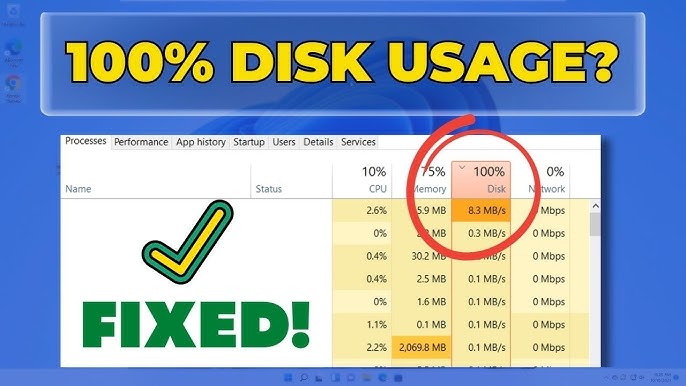
2. Free Up Disk Space (The #1 Software Bottleneck)
Low free space (especially on your boot drive) kills performance—Windows needs ~15–25% free space to work efficiently.
Quick wins:
- Open Settings → System → Storage → turn on Storage Sense and let it run automatically.
- Click Temporary files → select everything (especially “Windows Update Cleanup”, “Delivery Optimization Files”, old Windows installs) → Remove files.
- Run classic Disk Cleanup (search for it in Start menu) as administrator → Clean system files → select all options.
Extra space hogs to check:
- Downloads folder
- Old backups / disk images
- Large video/game installs you no longer play
- Browser caches (especially Chrome/Edge with heavy YouTube/Netflix usage)
→ Aim for at least 20–30% free space on your C: drive.
3. Uninstall Unused Programs & Bloatware
Every unused app wastes space and often runs background services.
- Go to Settings → Apps → Installed apps.
- Sort by size or install date.
- Uninstall anything you haven’t used in >6 months (common culprits: old games, trial software, manufacturer bloat like “McAfee”, “Candy Crush”, HP/Dell utilities).
- For stubborn pre-installed apps: use PowerShell command (admin): Get-AppxPackage *candy* | Remove-AppxPackage (replace candy with app name fragment).
4. Disable Unnecessary Startup Programs
Too many apps launching at boot = slow startup + constant RAM/CPU usage.
- Press Ctrl + Shift + Esc → Startup apps tab.
- Disable anything rated High impact that you don’t need immediately (OneDrive, Spotify, Discord, Adobe updater, Steam, etc.).
- Keep antivirus, GPU control panel (NVIDIA/AMD), and essential drivers enabled.
→ This alone can shave 30–90 seconds off boot time and free gigabytes of RAM.
5. Scan for Malware & Remove Resource-Hogging Threats
Even “light” adware/miners can eat 10–30% CPU in the background.
- Use built-in Windows Security (full scan).
- Optional second opinion: Malwarebytes Free (scan only, no real-time needed).
- Browser → remove suspicious extensions.
6. Update Everything
Outdated drivers/software = bugs + inefficiency.
- Windows Update → Check for updates (including optional driver updates).
- Microsoft Store → Downloads and updates.
- GPU drivers: GeForce Experience / AMD Software (clean install option recommended).
- BIOS/UEFI → only update if you have specific issues (not routine maintenance).
7. Advanced Tweaks for Extra Speed (Optional but Effective)
- Power plan: Settings → System → Power & battery → Power mode → Best performance.
- Visual effects: Search “Adjust the appearance and performance of Windows” → select Adjust for best performance or uncheck animations manually.
- Browser: Use uBlock Origin + clear cache regularly.
- SSD users: No need to “defrag” — but run TRIM optimization (usually automatic).
- HDD users: Defragment weekly (search “Defragment and Optimize Drives”).
Quick Summary Checklist
| Step | Expected Speed Gain | Time Required |
|---|---|---|
| Physical dust cleaning | High (prevents throttling) | 20–60 min |
| Free disk space | Very High | 10–30 min |
| Uninstall bloat | Medium–High | 10–20 min |
| Disable startup items | High | 5 min |
| Malware scan | Medium–High (if infected) | 15–60 min |
| Windows + driver updates | Medium | 10–40 min |
| Power/visual tweaks | Medium | 5 min |
Do these steps once, then maintain monthly with Storage Sense + quick startup check.
A clean, dust-free PC with 20%+ free space and lean startup usually feels 2–4× snappier than a neglected one—even on the same hardware.